Friday, 10 April 2015

Chromebook review

You know those friends who aren't the most technical?  The ones who you give free IT support because you're the techie friend/family member?  Maybe it's your parent or and older neighbour or family friend.   Over the years I've built plenty of computers, installing AVG free antivirus software and making registry changes to improve security.  I've spent a lot of time re-installing to get rid of bloatware and to try to work around some of Windows flaws that are easiest to circumvent.

Last month it was time to recommend a replacement laptop for one of these friends.  Lyn tells me her bulky Windows machine sometimes takes 30 minutes to boot and doesn't last even that long on battery--even though it's only a few years old!  I started explaining the benefits of Apple, with my personal stories of genius bar appointments where I walk away with my software/hardware problem solved, either through tuition, software or hardware repair, or even full hardware replacement!  I couldn't promise the hardware would last longer than Windows equipment, but I thought the support that you get with Apple products might justify the significantly higher price.  But these days there are more choices than bloated Windows or expensive Apple.  Ultimately she bought the third choice, the first time I've recommended a Chromebook.


For this comparison, we're not really trying to compete with a high spec laptop.  There's no DVD player and not a lot of memory or storage space.  But this is a middle ground option--below a less expensive laptop, and above a tablet.  Think a tablet with a physical keyboard and USB ports added--although this Chromebook is cheaper than an iPad or iPad Mini.  Although my testing has taught me that it's not quite a tablet either.  The only Apps that will install seem to be those that run in the Chrome browser, which I'll discuss more later.

Like some laptops, the Chromebook has SD storage instead of spinning disk drive.

I read reviews of this Toshiba Chrombeook and someone complained of a bug where it looses connection to WiFi routers that transmit dual SSIDs, but it's working fine for me.


Ecosystem: If you are a big user of Google for email and especially Google Docs (drive.google.com) and/or an android phone, then you'll connect easily into the Google ecosystem.  Similarly, if you are an Apple user then you are likely to try their other products and you'll know they are the best at tempting customers to take advantage of benefits of their ecosystem (Apple iTunes for music/movies, App store purchases, etc.).  I bought Apple's office productivity software for one computer and can use it on all my other Apple computers--a different pricing model than anyone else (Microsoft) offers.  Microsoft's ecosystem isn't as far reaching but they are trying.  Their phones are the weakest link in their product chain.  But back to the ecosystem.  If you're a Chrome user, and unless you've reduced your security, it's great when you first log into a Chromebook as your usernames (and passwords if you've opted in) are right there remembered for you.  As are your URL history, helping you by suggesting the websites before you finish typing their names.  Great!


Price:  The idea has always been that you have to pay premium price to get the top Apple experience. and that Microsoft is cheaper.  But there are so many hardware choices, and my comparison Dell option is more expensive than a Macbook Air with the same amount of SSD storage--though the difference can be explained in part because Dell has twice memory.   But, I just noticed the Dell Lattitude option includes the cost of £130 (for Home edition) or £230 (for Office Edition) of Microsoft Office alone!  £1290/1400 total.  Worth considering you can buy a Chromebook and get working for about the same price as Microsoft Office software alone.  This is very complicated.  For example, if you buy an HP Pavillion 11 inch from PC World, you can get office for £80.


Security:  ChromeOS is based on Linux and gives hardened operating system featuring auto-updating and sandboxing that Google says will reduce malware exposure.  Chromebook is designed in a way that means far less security issues.  If you don't have any "deal breaker" software locally installed on your laptop, then a Chromebook might be right for you.  The only way software is added to a Chromebook is via the Google Play Store, which is more controlled than Apple OSX and Microsoft Windows.  It's a balancing act between strengthening security by limiting software versus expanding choices but opening up security risks.  At the moment Chromebook is stronger on security by limiting Apps that can be installed to only those that run in the Chrome browser.  This may change as they allow Apps from the Google Play app store, as insinuated in the Pixel video clip above.  I predict the apps available will increase, which is good for function, but it might be a good idea to allow companies to have lock-down options or security levels to limit/allow this depending on whether security or flexibility are their priority.


Speed & Ease of Setup:  I'm writing this sentence less than 5 minutes after turning on the Toshiba CB30-104 for the first time. I connected to WiFi and gave a Google login username/password.  That's all--ready to go.  I'm ready to work.

Chromebook wasn't designed to run high-end software like Adobe Photoshop, but is meant to compete with lower spec netbooks.  However, a quick look at Gimp (the open source Photoshop clone), shows a rich feature set.  Seems to work fine, just a little slower as it runs over the internet.

Still, comparing apples and oranges, this Chromebook powered up in 8 seconds, login and loading my 10 browser tabs took longer, an additional 40 seconds.  My high-spec work laptop took 14 seconds to boot to Windows and 30 seconds to login and bring up the same browser sessions.


Hardware & Build Quality:  Keyboard & Mouse feels fine at first.  The plastic case feels noticeably cheaper than what I'm used to from Apple and Dell, but so far it's working very nicely and it's not bad.  After a while I miss my premium keyboard on my Mac and I do have some frustrations with the mouse getting a bit confused and slowing me down a bit.   I'd use that external mouse if I was working for more than an hour or so--easy workaround.   I carried the device for about 15 minutes and noticed a few ways of carrying it the plastic case gave a little, but I wouldn't expect it to crack unless I was really careless.


The battery reports over six hours of life, and I got 5 hours of light to moderate use and still had 39% and 3 1/2 hours remaining!  That's very good in my view.


Working Offline:  Apple is either annoying or brave to be the first to reduce and remove ports, floppy drives, DVD drives from their Mac devices. Similarly the concept of a Chromebook limits you to do everything on your web browser, which means you can't do much without internet access.   That's may seem silly but I think it's a brave idea. Of course, we still want to work offline.  The best solution is to buy your Chromebook with a 3G plan so it can connect like your smartphone does when no WiFi is available.  Alternatively, I've tethered my Chromebook with my phone's 3G in about a minute and I'm typing this now using the 3G connection just fine.


Microsoft Office Offline

Office365
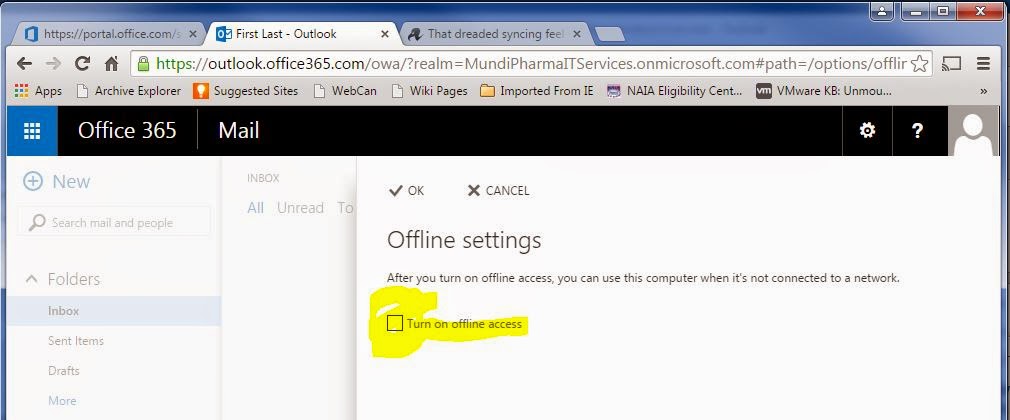

Office was a huge failure offline.  The official Office 365 blurb says you need a PC or Mac and the client software installed.  Then offline it claims to give three days worth of items, or 150 messages, which ever is larger.  Attachments do not open while offline and up to 20 folders are sync'ed.   Search is not supported either.

Again, with the free versions, Word, Excel and Powerpoint gave an error message indicating loss of connection to the server not long after disconnecting WiFi on the Chromebook and froze.


The web software was useless and I couldn't make changes or more around the software at all.  The only exception was OneNote collaborative software which I'd never noticed, definitely not heard of anyone using..


Google Mail

I created a few Gmail test emails while offline.  Then searched and viewed some fairly old emails too.  Plus sent an email while offline and can confirm it was automatically sent once Chromebook reconnected to WiFi.


I've not put a lot of time into testing this because I usually have internet at home or the office or a cafe or the airport (and can even get it on a plane these days).

It's easy to find out how to change things or learn about settings on your Chromebook.  Printing is easy enough to setup at home too.  It took less than 2 minutes.


Pros'
Setup and ready to use faster than any computer I've used.
I plugged in the nearest mouse and keyboard, and it's working without a missing a beat (no popups about installing drivers, just plugged and played).

Websites I've tested to make sure Flash/Silverlight works ok:
Netflix, Amazon Prime Instant Video, YouTube, Google Play, Google Play Music

Con's
No Visio, though Outlook, Word, Excel, PowerPoint and OneNote are all there via OneDrive online.

HDMI port for external display, rather than the usual 15 pin VGA or the newer standard I'm seeing on Dell and Mac.

No Skype!  I use it on my Apple OSX, IOS devices as well as Windows PCs and Window Lumia smartphones, so this is really unfortunate.  Of course you can use Google hangouts, but to give your granny a Chromebook then tell her she needs to convince her grand-kids to change from Skype is unfortunate.

There's plenty of advanced settings that you have to live without that super users take for granted on Mac/PC tablet, but they're really not that important.  If you can't do without things like controlling what your laptop does when you close the screen (power-save mode is default), how long it runs before automatically sleeping, etc., then you need a more expensive laptop rather than this web and app launcher.


Screen Display:  Here's a few photos of images displayed on the screens of a £170 Chromebook on the right and a £800 MacBook Air on the left.  Can you see the difference?  Is the difference worth the cost?  I did a non scientific experiment posting this on Facebook and the few people who voted seemed to notice a small advantage on the more expensive Macbook, but even my son who has a very good eye for this kind of thing had to admit the difference wasn't large.


Chromebook
Toshiba
CB30-104
Windows
Dell Lattitude
14-7000
Apple OSX
MacBook Air
price£169£1290£850
securitybestviruses2nd best
featuresandroid
app store
touchscreen
bloatware
runs most
software
premier
ecosystemGoogle
best for
G-Drive/Gmail
Microsoft
best for
Office/Outlook
Apple
Office Suite
or MS Office
best for iPhone
build
quality
depends
on price
depends
on price
depends
on price
screen13.31413.3
SSD
storage
16 Gb
+128 Gb
via SD
256 Gb128 Gb
RAM4 Gb8 Gb4 Gb
remote
working

fair
integration
with
Windows

best
integration
with Windows

2nd best
integration
withWindows

Windows  You can install anything you can think of from small business finance software to video and audio editing to code compilers for students learning computer programming at university. Mac offers all of these categories, but sometimes not as many choices.  Windows is strongest in workplaces (Microsoft Office) and gaming and it's always been a safe bet for most computing needs.  Lately the viruses and bloatware forced on users as a way to push advertising or try to sell software has become a high price to pay to reduce the initial cost of the laptop. This along with virus and antivirus hassles are both big reasons to consider ChromeBook.

The Mac can install most kinds of software that Windows offers, but doesn't give the options for the serious gamer or a few other niche users.  Not everyone knows how to use a Mac, but people who try them usually are more than happy with the differences.  Although opinions differ, Mac is the Mercedes/BMW/Cadillac of personal computing. Plenty of people really cherish their Apple products.  They are designed to be things of beauty instead of inexpensive tools.  Mac has always been the strongest presence in the creative pursuits: music creation, film making, graphics design, photography, publishing, etc.  Note that you can still buy Microsoft Office for Mac and I can attest that it works great on Mac.

Chromebook is taking advantage of a fairly fundamental change that's happening right now in the way we do computing.  For example, a small charity I know used to install SAGE finance accounting software on a Windows computer but now has switched to a service which hosts a better solution on their website.  It links to our bank account and even guesses which budget code to assign each expense based on what's been assigned already.  Plus it does much better reports than the old software installed on our PCs did.  So this is an ideal example of when a Chromebook wins.  We can run all of our charity's finances from a web browser, so we just use an inexpensive Chromebook!   No software to install, license, configure, backup, upgrade, etc.  Same with email.  No need for MS Outlook client to be installed or configured, just use the web interface for Gmail (Google) or Hotmail (Microsoft) or Yahoo, or your choice.  Same with word processing, spreadsheets or presentation software like PowerPoint. If you can do what you need with the online version (Microsoft or Google) then you don't need to install it, and might not need that old fashioned PC at all. The benefit is quicker setup, easier and cheaper to maintain and support.

As more and more of our computing is done in the cloud, a beefier Chromebook like the Chrome Pixel makes sense aimed at users of high end laptop like the MacBook Air.


Sample Screenshots


Summary:  As usual, whether this is right for you depends on what you need.  The cost savings and security of a Chromebook are perfect for someone who doesn't use their computer for advanced or niche purposes.  Employees might be able to use a Chromebook if enough of the software is located on servers or a remote solution like VDI is available.  As time goes by more and more laptop users will be able to work with an inexpensive device that boots super quick and is very simple, secure and less expensive to maintain.

Sunday, 28 December 2014

Lumina 830 review

I'm not a professional reviewer, but I've used iPhones and Android and I use them fairly extensively (podcasts, audiobooks, social media publishing, etc.)

(^;  Charges when plugged into Mac OSX via it's USB cable

)^;  How do you find your own phone number?  No idea.  Googled it and the suggestions I found are not correct for this handset/service provider. Gave up and called another phone from the Lumia and looked at the caller-id to get it.  Silly.  This helpful chap showed me exactly where to go, but there's nothing there.

Keyboard

Better than the Android keyboard on the Samsung Galaxy S4. I've added the Swype one on my Android, but it's still not as good as Apple's IOS built in keyboard.  This Lumina/Windows

Placement of the @ key and the Num key and Caps are pretty smart.  The touch response is good too, giving a little vibration feedback so you know when it's realised you've pressed a key.  So, it's as good as IOS, very good indeed.

Screen:  The image quality is very good, bright clear images with good colors.


Icons

Had to learn a new icon, the logo for "send" or "apply" or "ok" which looks like an email icon with motion lines at the side to make it look like it's to send.   Not too bad, mostly intuitive, but don't expect too many new icons to learn these days.  I thought they used this for posting on BaseFook as well as sending emails, universal and all. But, no, there's another new icon to learn for "share".  Social media and gadgets have been around long enough for them to avoid making new symbols for existing functions.  It's companies ways to try to mark out their own influence but it's confusing and rarely works.

Screenshots are always important to me to be able to do quickly and easily.  The Samsung Galaxy uses the swipe motion gimmick, which doesn't always work, but is ok mostly, while the IOS equivalent is similar to this Nokia Lumina--press and hold two physical buttons.  On this Nokia it's the power button and the volume-up button.

send icon


share icon
Speaking of physical buttons, the having three spread out all along the right side means it's almost impossible to put this handset in a car holder so you can use the GPS for navigating.  While traveling and using the SatNav, the camera randomly activates, the volume goes up or down, or the phone gets sent into power save mode.  Not clever.

Camera  I'm not a photographer, but counted almost 8 seconds between pressing the button and the camera being loaded and ready to go.  That's too slow to avoid missing those important shots!

Apps:  When I switched from IOS to Android, I first made a list of my priority apps to see if I could swap them over.  Runkeeper, iPlayer, Amazon Cloud Player, Amazon, Dropbox, SoundCloud, Gmail, Google Maps, Google Docs, Password Manager, Kindle, Audible.  They were all there, even streaming Amazon Instant Video right there from my Android device.  Here's my list including the Windows Phone:


Apple IOS
iPhone 4S
Google Android
Samsung Galaxy S4
Windows 8.1
Lumia
Facebookno problemsno problems crashes occasionally
navigationGoogle Maps
works well
hangs GPS works very well
Runkeeperworks wellworks well not available!
Skype
works well
Amazon


works well does not include Amazon Instant 
Video Player
Amazon
MP3 Player
not testedworks well not available!


DropBoxworks wellworks well Doesn't sync, this or anything else, until plugged into USB connection
Audibleworks wellworks well buggy! doesn't work
SoundCloudworks wellworks wellnot available for recording/posting or streaming

As an example, I downloaded Audible and signed in and downloaded a book.  Started listening--so far so good.  Then I stopped the app and when I came back to it later the eBook would not play. I restarted the handset, uninstalled the App, reinstalled the App and re-downloaded the eBook--no go.  Downloaded a different book, listened to it then tried switching to my original eBook--no go again. I still haven't figured out how to get my eBook to play again.     

In Short
In summary, the look and feel of the software interface is good. The glass face is solid and it feels well made.  But the reliability and lack of choices and features of the Apps combines with other weaknesses to show that this phone is only to be recommended for the most basic smartphone user who is happy with all the drawbacks to get the reduced cost.

Friday, 12 December 2014

hostd disconnect & ESXi5 SAN storage issues with PowerPath 5.9.1.00

Symptoms:  Adding more than 2 luns caused hostd to disconnect hosts from vCenter.  Underlying issue is storage related.

We learned a lot about the PowerPath Adaptive policy (autostandby and proximity) but the fix for our problem was to upgrade PowerPath on our hosts.  Seems there's a VMware bug that shows when too many paths are presented for a disk.  Until VMware fixes the issue, taking PowerPath Version 5.9 SP 1 (build 11) to Version 5.9 SP 1 P 02 (build 54) stops our headaches.

The problem shows on our cross connect VPLEX, but it seems it's the number of paths to the storage rather than whether it's cross connect or not.

Still need to confirm this is the smoking gun, as their kbase article mentions APD and I  haven't seen that.  But out internal testing looks pretty good. We were reproducing the issue on demand in a test cluster with only two ESXi hosts (no VMs) and with less than 10 distributed volumes (VPLEX luns).

Got this from EMC:

Article Number:000190540 Version:7
Key Information

Audience: Level 30 = Customers Article Type: Break Fix
Last Published: Thu Nov 20 19:18:35 GMT 2014 Validation Status: Final Approved
Summary: ESXi host becomes unresponsive after adding or removing LUNs.

Impact ESXi host becomes unresponsive after adding or removing LUNs.
ESXi host has to be rebooted.
ESXi host cannot be managed in vSphere.
Issue Adding or removing LUNs on an ESXi host and rescanning storage can cause the host to stop responding in the management GUI.
The host becomes unmanageable and must be rebooted to restore management abilities.
Virtual machines continue to run normally, even though the ESXi host is not responding.
The hostd Daemon is a management daemon and it stops responding.
All paths down messages will sometimes be seen in the host logs just before the host stops responding.
Environment System: VMware ESXi 5.1
System: VMware ESXi 5.5
EMC SW: PowerPath/VE for VMware 5.9.1
Cause A bug in NMP contributes to a bug in PowerPath causing the host to leave a device in an All Paths Down state.
While the device is in All Paths Down it will continue to consume resources until the hostd daemon cannot start any new management threads.
When this happens the host becomes unresponsive because the hostd daemon cannot respond to managment requests.
Change Adding or removing a LUN to an ESXi host or cluster.
Resolution Solution:
Upgrade PowerPath to version 5.9 SP1 P02 (5.9.1.2) or later.


Workaround:
Once the host has stopped responding there are two options to bring it back.  You can try undoing the storage change that triggered the host to become unresponsive, or you can reboot the host.
The VM's are still running normally, so they can be gracefully shut down.  Because the host is not responding you will not be able to vMotion virtual machines to another host.

This problem is partially triggered by the presence of an ACLX or LUNZ device.
Removing these devices will greatly reduce the chances of the host going unresponsive.

Symmetrix: Unmap any ACLX devices from the FA's that the ESXi hosts are zoned to.
CLARiiON / VNX: Add a real LUN as lun 0 into the storage group and then reboot the ESXi host.

Place hosts in maintenance mode before adding or removing LUNs, so that they can be rebooted without affecting production if it is needed.
Notes This issue is seen with Symmetrix, VNX, CLARiiON and VPLEX arrays.   There is a separate OPT for this issue when seen with VPLEX arrays.

The kernel.log from the ESXi host may show evidence of entering and exiting an All Paths Down state similar to this:
cpu4:16629)ScsiDevice: 4108: Setting Device naa.60000970000298701034533030333844 state back to 0x2
cpu4:16629)ScsiDevice: 6121: No Handlers registered!
cpu4:16629)ScsiDevice: 4126: Device naa.60000970000298701034533030333844 is Out of APD; token num:1
cpu4:16629)StorageApdHandler: 277: APD Timer killed for ident [naa.60000970000298701034533030333844]
cpu4:16629)StorageApdHandler: 402: Device or filesystem with identifier [naa.60000970000298701034533030333844] has exited the All Paths Down state.
Attachments
Article Metadata
Product PowerPath/VE for VMware5.9 SP1
Operating System VMware ESX Server
Requested Publish Date 8/1/2014 1:11 PM

Friday, 14 November 2014

how to see the .vmx file in esxi?

I needed to check for sure the chain of snapshot files for my VM. I could see the disks in vCenter, and could see the .vmsd file, but before breaking the file lock on an old snapshot file and forcing a delete, I needed to be sure. In ESX you just ssh to the host and vi the .vmx file. ESXi doesn't allow you to do that on a running VM. So, what to do? create a vm-support bundle of the host, then unzip and untar it. find the vmfs directory and one more directory under there are the VMFS datastores listed with their .vmx files intact. Open them in your fave editor, and enjoy!

Thursday, 13 November 2014

what is vmname-vss_manifestss9.zip?

Never seen this before in the home directory of my VMs.  Related to the VSS snapshot created for the VADP backup that is having issues?

It's 32K in size, but other than that all I know is nothing on Google search, nothing on VMware.com or support.emc.com searches either.

No lock on the file, so I downloaded it and had a look:


So, looking inside, this manifest is to do with the VSS writer and the VADP backup.  Probably only left this file behind 'cause of problems with the backup.  Lots of DLLs listed in the writer xlm file:

<?xml version="1.0"?>
-<WRITER_METADATA version="1.1" xmlns="x-schema:#VssWriterMetadataInfo"><IDENTIFICATION dataSource="OTHER" usage="BOOTABLE_SYSTEM_STATE" friendlyName="System Writer" instanceId="b4973554-e918-490d-a887-46fc0a85c5a5" writerId="e8132975-6f93-4464-a53e-1050253ae220"/><RESTORE_METHOD rebootRequired="yes" writerRestore="never" method="REPLACE_AT_REBOOT"/>-<BACKUP_LOCATIONS>-<FILE_GROUP componentFlags="0" selectableForRestore="no" selectable="no" notifyOnBackupComplete="no" restoreMetadata="no" caption="System Files" componentName="System Files"><FILE_LIST filespecBackupType="3855" recursive="yes" filespec="*" path="C:\WINDOWS\system32\CatRoot\{127D0A1D-4EF2-11D1-8608-00C04FC295EE}"/><FILE_LIST filespecBackupType="3855" recursive="yes" filespec="*" path="C:\WINDOWS\system32\CatRoot\{F750E6C3-38EE-11D1-85E5-00C04FC295EE}"/><FILE_LIST filespecBackupType="3855" recursive="yes" filespec="*" path="C:\WINDOWS\system32\CatRoot2\{127D0A1D-4EF2-11D1-8608-00C04FC295EE}"/><FILE_LIST filespecBackupType="3855" recursive="yes" filespec="*" path="C:\WINDOWS\system32\CatRoot2\{F750E6C3-38EE-11D1-85E5-00C04FC295EE}"/><FILE_LIST filespecBackupType="3855" filespec="acgenral.dll" path="c:\windows\apppatch"/><FILE_LIST filespecBackupType="3855" filespec="aclayers.dll" path="c:\windows\apppatch"/><FILE_LIST filespecBackupType="3855" filespec="acres.dll" path="c:\windows\apppatch"/><FILE_LIST filespecBackupType="3855" filespec="acspecfc.dll" path="c:\windows\apppatch"/><FILE_LIST filespecBackupType="3855" filespec="acxtrnal.dll" path="c:\windows\apppatch"/><FILE_LIST filespecBackupType="3855" filespec="admwprox.dll" path="c:\windows\system32"/><FILE_LIST filespecBackupType="3855" filespec="admwprox.dll" path="c:\windows\syswow64"/><FILE_LIST filespecBackupType="3855" filespec="adsiis.dll" path="c:\windows\system32\inetsrv"/><FILE_LIST filespecBackupType="3855" filespec="adsiis.dll" path="c:\windows\syswow64\inetsrv"/><FILE_LIST filespecBackupType="3855" filespec="ahui.exe"

the backup.xml file isn't so much windoze gobeldy gook:

-<WRITER_COMPONENTS writerId="a6ad56c2-b509-4e6c-bb19-49d8f43532f0" instanceId="1c8717c4-c53e-4aac-8738-b510483836f8"><COMPONENT backupSucceeded="yes" componentType="filegroup" componentName="WMI"/></WRITER_COMPONENTS>

So, the backup reports as suceeded, but these files weren't cleaned up.

KC

Tuesday, 11 November 2014

An error occurred while consolidating disks: msg.fileio.lock.(Can't consolidate VM snapshot)


1.  Tried clicking on consolidate -fail
2.  Tried creating and deleting snapshot -  succeeded, but didn't allow me to consolidate snapshot
3.  Tried creating and snapshot with memory state unticked -- same as above, no-go.
4.  Tried cloning the VM. The clone had consolidated disks, but didn't want the outage of switching VMs, plus the hassle of new mac address on the cloned VM with ghost vNIC issue.

5.  But then tried storage vMotioning the VM.  Bingo!  success!

This originating problem was caused by VADP backup.  Seems vSphere 5.5 handles snapshots differently, or maybe, as I read here.

******************
UPDATE: 13/11/2014
******************

overlooked two important facts here:

1) the old snapshots on your old disk are not cleaned up when you sVMotion to a new disk.
2) Trying to delete them from DataStore browser doesn't work.  Are these files still locked?  Shouldn't be as the .vmsd file is empty and the disks referenced as active by the VM is no longer the delta VMDK.  More to come.

I hope this helps someone avoid an outage for their VMs.

KC

Sunday, 2 November 2014

Migrating the Whole Stack


Goal:  to migrate as many of our varied services and VMs with the least interruption to our customers.  vMotion and storage vMotion whenever possible.  Similar to my previous post here.

Preparation
New vBlock with all storage, compute, network and virtualisation components above was installed fresh so no in-place upgrades were needed as this method is simpler and has less risk.    


Prepare ESX4 migration storage

Storage: Create a VMFS3 datastore on the new vBlock.  Old vSphere v4 won’t recognise the new VMF5 so this is one of many “hops” that mean an extra step to avoid downtime on the VMs.

Prepare ESX4 migration host

Storage: Split HBAs so one is mapped to the old storage for the VMs before migration (unchanged) Then map the new VMFS3 datastore to the second HBA .  This is making the first migration host a “bridge” between the old storage and the new storage, which the VMs step across via vMotion..  

Prepare ESXi5 migration host 1

CPU: put in VMware cluster with EVC mode set to “Neehelam”.  This is so you can vMotion the VMs from the old CPU chipset on ESX4 to new CPU chipset on ESXi5.  This migration host is an extra step to avoid you needing to shutdown the VM to move it to newer CPUs.

LAN: Split pNICs on the 1st ESXi5 migration host by removing one (we have two) from the vDSwitch and assigning it to standard virtual switch and port groups identical to the ESX4 VM networking.

Prepare ESXi5 migration host 2

LAN: Split pNICs on the  2nd ESXi5 migration host by removing one from the vDSwitch and assigning it to standard virtual switch and port groups identical to the ESX4 VM networking.


Steps:

1.  vMotion first batch of VMs to the IBM/NetApp/ESX4 migration host on vCenter4
disconnect migration host from vCenter4 and connect to vCenter5

2.  sVMotion VMs to temporary VMFS3 datastore on the vBlock
configure vBlock vMotion pNIC on ESX4 host to enable vMotion to vBlock host

3.  migrate VMs to ESXi5 migration host with vMotion to get from old CPU to new CPU and vSphere5

4.  migrate VMs to 2nd ESXi migration host with vMotion to get from EVC to access new CPU features 

5.  use network migration wizard to move VMs from standard vDSwitch port groups to vDSwitch port groups with same vLANs.

6.  finally, migrate VMs to “permanent” ESXi5 host 
check cluster settings for VMs  (HA, DRS) in final vSphere5 clusters

7.  reconfigure vMotion disabling vBlock pNIC and enabling IBM/DataCore configured pNIC for vMotion ready for next batch of VMs to be migrated

8.  disconnect ESXi4 migration host from vCenter5 and reconnect to vCenter4.

repeat steps 1-11 until VMs are migrated

Next:  Exchange, SQL Server, and other VMs with RDM storage

EMC Networker BMR Bare Metal Recovery


Preparation
Disconnect the NIC of the machine you're about to recover, if it's not completely dead yet.  I always build a new machine identical to the one we're recovering.  Since they're always virtual, it's easy to set the same OS, vRAM, vNICs (mac address, if needed), vCPUs and VMDKs.

No need for an operating system or NW client to be installed on the new client as the BMR will do that.

Steps 
EMC has a video that shows this in action here or search YouTube for the same video.
Also, see page 634 of the Networker Administration Guide.

I thought it glosses over a few details which might be of interest.

Gotcha
My learning was around the version of the Wizard/ISO needed.  If your Networker server is v8.1.1 and your client is still running NW764, then don't try the Windows with NW 8.1 BMR.  It seems to work in loading and letting you fill out the fields for the wizard, and even formats the partition on your recovery client.  But it bombs right after trying to restore the files/folders to the partitions, with no real error message.  The logs are pretty unhelpful.

Learnings
You might need to wipe your recovery server if you need to make a few attempts. If the tool bombs and dumps you to DOS prompt and you try to restart it, you may have issues.  We got error that there was already a machine on the network with this ip address (even though it had not recovered the files/folders successfully at that stage).  Trashing the new recovery server's C drive from VMware and creating a new one got around this easily enough.

There doesn't seem to be a Linux version of this tool either, although you could make one easily enough.

I thought this tool might just bring back the crucial registry and disk partitions and OS needed to boot, then you might need to do another restore to get the rest of the data, but it did restore everything for me.  Nice.

Is the EMC documentation any good in your view?  There's a lot there, like:

Note:  By default, the Windows 2012 System Writer does not report Win32 Service Files as a part
of systems components. As a result, the volumes that contain Win32 Service Files are not
considered critical and the DISASTER_RECOVERY:\ save set will not include a volume that
contains files for an installed service. To configure the Windows 2012 server to report
Win32 Service Files as a part of system components, set the ReportWin32ServicesNonSystemState registry sub key to 0. Microsoft KB article 2792088 provides more information.


It mentions Windows storage spaces, storage pools, synthetic full backup as well, which I've not learned about yet.

My experience is that BMR formats and restores C drive and one more.  You'll need to run the Networker client software to restore any other data disks in the usual way.

Another thing you probably already noticed is that BMR doesn't know anything about the Virutal Machine.  That means the vNIC.  If you recover with BMR to a new VM, and the software on your server cares if the MAC address changes, then you'll do an extra step of changing the mac address of your vNIC to "manual" and use the copy/paste

Friday, 27 June 2014

Before using PowerPath, we wanted a way to check/fix primary fibre (even fiber) storage paths that were active across our interswitch link.

We can go in to vCenter and click on poperties for a datastore (or lun if it's an RDM) and change the active path:

But how do you do this automatically for hundreds of luns, or just check to see if they're wrong.  NetApp has a command to run on the filer to tell you if traffic is going down the wrong path, but these ESX commands will tell you if they're set wrong, even if no traffic is going down them (like on servers in a cluter that aren't running the VMs).

It's not simple, but a few key commands will get the info needed:

list all your luns by NAAid:
naa_list=`esxcfg-mpath -l | grep "naa\." | grep "Device: " | cut -d: -f2 | sort -u`

loop through all of them to check the primary path currently assigned, and whether it matches what it should be.

for naa_identifier in `echo $naa_list` ; do
   echo $naa_identifier
   echo do other commands here
done


Find the RunTime Name (VHBA-Controller-Target-LUNID) which is the active path:

# esxcli nmp fixed getpreferred --device  naa.60a98000375334364a2b42436c754239

or

# esxcli nmp fixed getpreferred --device  ${naa_identifier}

which gives:
vmhba1:C0:T3:L200

Is that on the correct initiator (SAN HBA)?

# esxcfg-mpath -L -P  vmhba1:C0:T3:L200
vmhba1:C0:T3:L200 state:active naa.60a98000375334364a2b42436c754239 vmhba1 0 3 200 NMP active san fc.20000024ff03607f:21000024ff03607f fc.500a09808d310651:500a09819d310651


See in bold above, that's the unique part of our NAAid which shows which filer owns the storage.

If it's right, you've confirmed so, if it's wrong, you need to get the correct RunTime Name and change the active path to match it.  You'll need to find a few other things first:

lun_ID=`esxcli nmp fixed getpreferred --device ${naa_identifier}  | cut -d: -f4 | tr -d "L" `
naa_identifier (see above)
correct_pripathwwn (this is one thing you have to figure out and set as variables in your script based on your unique identifiers reported by ESX for your SAN HBAs)

esxcfg-mpath -m | grep -i ${naa_identifier}

vmhba2:C0:T3:L200 vmhba2 fc.2000001b329cdc1d:2100001b329cdc1d fc.500a09808d310651:500a09829d310651 naa.60a98000375334364a2b42436c754239
vmhba1:C0:T3:L200 vmhba1 fc.20000024ff03607f:21000024ff03607f fc.500a09808d310651:500a09819d310651 naa.60a98000375334364a2b42436c754239
vmhba2:C0:T2:L200 vmhba2 fc.2000001b329cdc1d:2100001b329cdc1d fc.500a09808d310651:500a09818d310651 naa.60a98000375334364a2b42436c754239
vmhba1:C0:T2:L200 vmhba1 fc.20000024ff03607f:21000024ff03607f fc.500a09808d310651:500a09828d310651 naa.60a98000375334364a2b42436c754239
[root@VHB24 scripts]#


see how similar this info above is to the screen grab of what vCenter shows?  it's all four paths for our lun, with the full RunTime Name (VHBA-Controller-Target-LUNID) for eath of the paths to the lun.

With all that, you can get the bit needed to change the active path with this command:
correct_pripath=`[root@VHB24 scripts]# esxcfg-mpath -m | grep -i naa.60a98000375334364a2b42436c754239 | grep -i vmhba[1-2]:C0:T[0-9]:L${lun_ID} | grep ${correct_pripathwwn}`

so you can fix the active path with:
#esxcli nmp fixed setpreferred  --device ${naa_identifier} --path  ${correct_pripath}

We do have to run this on each of our hosts, but if running the script takes 20 minutes per host, imagine how long it would take to manually fix these paths on once for each of our 200 luns on our dozen hosts! 

Anyone want to put this in a powershell script?  I'm a bit embarrassed about putting my final script here as it's messy and not optimised beautifully.

The RDM part of my script looks a little like this:


-KC


Thursday, 1 May 2014

reboot needed for vCenter Windoze VM

"Clone virtual machine A general system error occurred: Failed to write to C:\ProgramData\VMware\VMware VirtualCenter\journal\1398968714.70: Error writing file. There is not enough space on the disk. Creating snapshot of Virtual Machine"


I checked and there is plenty of GBytes of free space on that disk partition.

So that's yet one more bogus error message.


https://communities.vmware.com/message/1528814 says to reboot vCenter, which sorted the problem for me.

Friday, 11 April 2014

Script for Setting Perennial Reservations on RDM luns

RDM's must have the perennial reservation flag set to true.

Unfortunately the four bits of info (perennial reservations setting, NAA ID, LUN_ID and Data Store Name, aren't all available from one command, so you need to do a little work.

NAAID and Perennial Reservation status:

ssh to host and run:
# esxcli storage core device list > /tmp/esxcli_reservations_naaID.txt
where you'll see the NAA id and Perennially Reserved status for all luns on that host:
naa.60060160b1b02d00559a83248cc0e311
   Display Name: DGC Fibre Channel Disk (naa.60060160b1b02d00559a83248cc0e311)
   Has Settable Display Name: false
   Size: 122880
   Device Type: Direct-Access
   Multipath Plugin: PowerPath
   Devfs Path: /vmfs/devices/disks/naa.60060160b1b02d00559a83248cc0e311
   Vendor: DGC
   Model: VRAID
   Revision: 0532
   SCSI Level: 4
   Is Pseudo: false
   Status: on
   Is RDM Capable: true
   Is Local: false
   Is Removable: false
   Is SSD: false
   Is Offline: false
   Is Perennially Reserved: false
   Queue Full Sample Size: 0
   Queue Full Threshold: 0
   Thin Provisioning Status: yes
   Attached Filters: VAAI_FILTER
   VAAI Status: supported
   Other UIDs: vml.020003000060060160b1b02d00559a83248cc0e311565241494420
   Is Local SAS Device: false
   Is Boot USB Device: false

LUN_ID and NAAID

# esxcli storage core device list | grep -C12 "Reserved: false" | grep "Path: /vmfs/devices" | cut -d. -f2 | tee /tmp/NAA_perennial_false.txt
to get the list of NAA ids of luns without perennial reservation set.

List all LUN numbers:
~ # esxcfg-mpath -l | grep "LUN:" | cut -d: -f4,5 | awk '{print $2,$3}' | sort -
u | sort -n -k2
LUN: 0
LUN: 1
LUN: 2
LUN: 3
LUN: 8
LUN: 9
LUN: 10
LUN: 11
LUN: 12
LUN: 13
LUN: 14
LUN: 15
LUN: 42
LUN: 132
LUN: 149
LUN: 151
LUN: 198
LUN: 200
LUN: 201
LUN: 202
LUN: 203
LUN: 204

NAAid and Data Store name

But most of these are VMFS datastores, which are set correctly when they have perennial reservation as false (default is correct, so don't change):

~ # esxcfg-scsidevs -m | awk '{print $1,$5}' > /tmp/esxcfg-scsidevs-m-naaID_DataStore.txt

naa.6000144000000010a0245b40d0472b3a:1 SAN_DS1
~ #

You can manually verify the RDMs and build the command below to change from False to True on RDMs:
esxcli storage core device setconfig -d naa.id --perennially-reserved=true
for example:
# esxcli storage core device setconfig -d naa.6000144000000010a0245b40d047369b --perennially-reserved=true
# esxcli storage core device setconfig -d naa.6000144000000010a0245b40d047369e --perennially-reserved=true

Or just run this script to build the commands for you:
_____________________________________________________________________________
esxcfg-scsidevs -m > /tmp/esxcfg-scsidevs-m-naaID_DataStore.txt
esxcli storage core device list | grep -C12 "Reserved: false" | \
grep "Path: /vmfs/devices" | cut -d. -f2 | while read naaID ; do
#echo "checking ${naaID} for datastore" ;
grep ${naaID} /tmp/esxcfg-scsidevs-m-naaID_DataStore.txt >/dev/null
RC=$?
if [ ${RC} != 0 ] ; then
echo -n "${naaID} does not have datastore, assuming RDM, "
echo "which needs perennial reservation set with command shown:"
echo
echo -n "esxcli storage core device setconfig -d "
echo "naa.${naaID} --perennially-reserved=true"
echo
echo
else
DataStore=`grep ${naaID} /tmp/esxcfg-scsidevs-m-naaID_DataStore.txt |\
awk '{print $1,$5}' | awk '{print $2}'`
echo -n "NAAID ${naaID} has datastore ${DataStore}, so does not need "
echo "perennial reservation changed"
fi
done
__________________________________________________________________________

Example run of script follows:

60060160b1b02d00559a83248cc0e311 does not have datastore, assuming RDM, which needs perennial reservation set with command shown:

esxcli storage core device setconfig -d  naa.60060160b1b02d00559a83248cc0e311 --perennially-reserved=true

NAAID 6000144000000010a0245b40d047339f has datastore SAN_DS1, so does not need perennial reservation changed

References:
http://kb.vmware.com/selfservice/microsites/search.do?language=en_US&cmd=displayKC&externalId=1016106

Monday, 31 March 2014

vCOPs Backups (VMware VCenter Operations Manager) backups

Seems this isn't documented very well or discussed much online from what I can see.

Here's what I found so far:

commands to backup postgress database on the Analytics VM (dbase VM):

#su - postgres
#pg_dumpall | gzip -c > /data/pgsql/vcops_pg_dump_all_gz

Then I'll backup the VMs.

To automate this I'll put the postgress dumpall command in to run under the postgres cron scheduler.

Kudos to postgress help from NixCraft.

VMware Docs (see 'round page 116)

So to restore I'd recover the VMs using my backup software, and if needed go back to the database dump and recover it with:

(stop vCOPs service if not already stopped first) from admin linux login, run "vcops-admin start"

#gunzip /data/pgsql/vcops_pg_dump_all.gz
#psql -f /data/pgsql/vcops_pg_dump_all postgres


Wednesday, 19 February 2014

verifying reload of syslog server

This post is gonna be a bit messy.  I'm trying (again) to start learning about PowerCLI so there are more things that I don't know than things that I do.  No worries, post comments and help me as all I know is Bourne Shell scripting.  (^;

I'm checking my syslog settigns are all consistent and correct.  Of course we can check and change them from vCenter (or new vCenter web client--shudder!), but more than a few hosts are best done by scripts/cli.

I can check this from PowerVCLI:

get-vmhost | Get-VMHostAdvancedConfiguration -Name Syslog.global.logHost

or specific hosts:

Get-VMHostAdvancedConfiguration -Name Syslog.global.logHost -VMHost host1


Name                           Value
----                           -----
Syslog.global.logHost          udp://1.2.3.4:514

and I can even fix it with a script using these commands

Set-VMHostAdvancedConfiguration -Name Syslog.global.logHost -Value 'udp://1.1.1.1:514' -VMHost host1

$esxcli = Get-EsxCli -VMHost host1
    $esxcli.system.syslog.reload()

thanks to this cool script kindly provided by Caleb here.

So, the reloading of the syslog service.  This isn't the usual linux service there's a command for reloading:
from the ESXi host (ssh/putty/DUI session):

~ # esxcli system syslog reload

the VMware kbase article(s) say to check the syslog is running with the good ol' linux ps command:

~ # ps | grep vmsyslogd
8666 8666 vmsyslogd            /bin/python
8667 8666 vmsyslogd            /bin/python
8668 8666 vmsyslogd            /bin/python

But how do you verify whether either of these methods have worked (other than the absence of error messages?).  

Seems /var/log/hostd.log is where this is recorded:

reload issued via PowerCLI:
2014-02-19T11:39:14.045Z [32B81B90 info 'Solo.VmwareCLI'] Dispatch reload
2014-02-19T11:39:14.114Z [32B81B90 info 'Solo.VmwareCLI'] Dispatch reload done

reload issued directly from ESXi linux login session:
2014-02-19T11:52:30.677Z [2A9DEB90 verbose 'Hostsvc.SyslogConfigProvider'] Running '/sbin/localcli system syslog config logger list'
2014-02-19T11:52:30.678Z [2A9DEB90 info 'SysCommandPosix'] ForkExec(/sbin/localcli)  393025
2014-02-19T11:52:30.830Z [2A9DEB90 verbose 'Hostsvc'] Received advanced config change notification


Can you shed any light on this?

Join the discussion and add your perspective.   Thanks, KC


Wednesday, 16 October 2013

Migrating ESXi4 to ESXi5 and changing vDistSw port groups without downtime

Scope: 


To move VMs from ESXi4 to ESXi5 without downtime means you won't be updating VMware tools (evidently future versions won't require a reboot--they promise this is the last). You can migrate to VMFS5 or upgrade datastore in place, but that won't be covered here either.

We're moving from ESXi4 hosts and vDist Switch port groups to ESXi5 hosts with different vDist Switch labels (but the same VLANs).

The method is different for VMs running on VMFS.  VMs with RDMs can't VMotion, but ours are part of Microsoft Clusters so we only have a small outage while they service is failed over from one VM to another.

Prerequisites and Setup before starting:


We needed an extra ESXi4 hosts and an extra ESXi5 host which I call "migration hosts" (or stepping stone hosts).  That's just to get the vDist Switches changed without interrupting the VMs network connections.


First we needed to move the VMKernel and VMotion off the vDist Switch so the host is not dependent on it (as we'll be removing the vDistSwitch as this host is moved to vCenter5).

Make sure you have one or two spare uplinks, you might need to remove a few spares from the vDist Switch.  Move the VMkernel configuration from the vDistSwitch to a newly created local port group from vCenter: Host > Configuration > Networking > vSphere Distributed Switch > Manage Virtual Adapters and "Migrate" (do VMkernel first, then do VMotion after you've finished VMKernel--two separate steps). 


who said VMKernel was dead in ESXi?  (^;

ESXi4 migration host: needs local port groups created and assigned VLANs for all VMs being migrated with vMotion.  Local port groups do not need the same name, but they need the same VLAN IDs so the VMs traffic will flow.  I did this a text file with all my port group names and VLAN IDs and a script that ran these commands on my ESXI4 migration host.

____________________________________________________
cat vDistPortGroups-new-only.txt | while read LINES ; do
pgn=`echo ${LINES} | awk '{print $1}'`
vlanid=`echo ${LINES} | cut -c1-3`
#echo $vlanid is vlanid and $pgn is portgroup name
echo esxcfg-vswitch -A "${pgn}" vSwitch0
echo esxcfg-vswitch -v ${vlanid} -p "${pgn}" vSwitch0
done
____________________________________________________

The ESXi4 migration host needs to be configured with the vDistSwitch used by your VMs that will be migrated and these new local port groups you've created with the commands from the script above.  the ESXi4 migration host is your stepping stone from VMs on ESXi4 with vDistSw to VMs on ESXi4 with local port groups.

Run the same commands on your ESXi5 migration host to get it ready as it will be a stepping stone from ESXi4 on local port groups to ESXi5 with local port groups (it will also be the stepping stone form ESXi5 on local port groups to ESXi5 on vDistSw).

Migrating VMs

ESXi4 to ESXi4 migration host:

1.  vMotion VMs from ESXI4 host to ESXi4 migration host.

2.  Migrate VMs to local port groups with Wizard; go to the Networking section of vCenter and highlight the vDist Switch and right click on "Migrate Virtual Machine Networking" to start the wizard.  Select the vDistSwitch port groups and VMs on your host.  I have this all mapped out in a spreadsheet as it can be confusing and I don't want to miss any VMs or NICs.

3.  Remove the vDistSw from your ESXi4 migration host

4.  Disconnect your ESXi4 migration host from vCenter4

5.  Remove your ESXi4 host from vCenter4.  Warning says you will loose VMs and resource pool info, but it's info in vCenter, not info on the ESXi host (read carefully, it's accurate, worrying, but no risk to VMs that are running).  Of course at this point if you have a host failure you won't get any HA benefits because you've moved the host from the HA cluster by removing it from vCenter).

6.  On vCenter5 (completely different hosts and vCenter and Nexus1K VMs, etc.) add the ESXi4 migration host which is running your migrating VMs.

7.  As our Nexus1K vDistSw VEM code on our ESXi4 and ESXi5 hosts are incompatible, we need an ESXi5 migration how in this step.  It needs the same local port groups as ESXI4 migration hosts to be configured, and you just vMotion your VMs from ESXi4 migration host to ESXi5 migration host (controlled by vCenter5).  Now you have your migration VMs on an ESXi5 host but they're still running on local port groups.  As the ESXi5 migration host has both local port groups and the new ESXi5 vDistSw port groups, you can use the same Virtual Machine Network Migration Wizard to move the VMs to their final vDistSw port groups.

8.  Finally, migrate the VMs with a regular vMotion to the finally "puka" ESXi5 host with the good vDistSw port groups.  The only difference between this host and the previous one is that there are no local port groups on this host.

9.  disconnect your ESXI4 migration host from vCenter5, reconnect it to vCenter4, "lather, rinse & repeat"

My checklist also includes making sure the HA/DRS settings are all correct and updated as new VMs are migrated into vCenter5 and cleaning up the migration hosts.


Migrating Microsoft Cluster VMs involves shutting down the passive/inactive node/VM, recording then removing the RDM's (remove, do not remove and delete) from the VM configuration (.vnx).  Disconnect/remove from vCenter4 the host with the passive RDM VM, add to vCenter5.  migrate to ESXi5 host while powered down, change VLANs for vNICS, add RDM's back by adding existing disks and browsing and selecting them--ensuring same SCSI ID is assigned.  Power up VM, failover MS Cluster so you can "lather, rinse & repeat" same steps on the other node and you're done!  This method does mean short interruption of service as MS cluster is failed over.

good luck!

Monday, 9 September 2013

Quick & Dirty: Replacing NetApp Disk

This doesn't include steps for a MetroCluster, I'll add that later if I do that
1.      Verify failed disk
SnapVault> vol status -f shows failed disks
  also, 
  SnapVault> disk show 0a.02.03
 Shows failed disk  
    where 02 is the shelf , see LED number on front, left (shelf 1 is top, 2 is middle, 3 is bottom)
    where 03 is bay (see printed numbers associated with each disk location)

The disk is amber instead of green and the shelf indicates a fault as well.  To make the disk blink to be sure it's the correct one, run

SnapVault> priv set advanced
SnapVault*> blink on 0a.02.03
SnapVault*> blink off 0a.02.03

2.       Now you need to physically replace disk
3.       Assign the newly replaced disk so it becomes a hotspare:
SnapVault> disk assign 0a.02.03

4.  Verify all is well
SnapVault> disk show 0a.02.03
    to verify it's assigned as spare
SnapVault> vol status -f shows failed disks
 Note: OnCommand GUI can do some of this too under "Storage", "Disks"